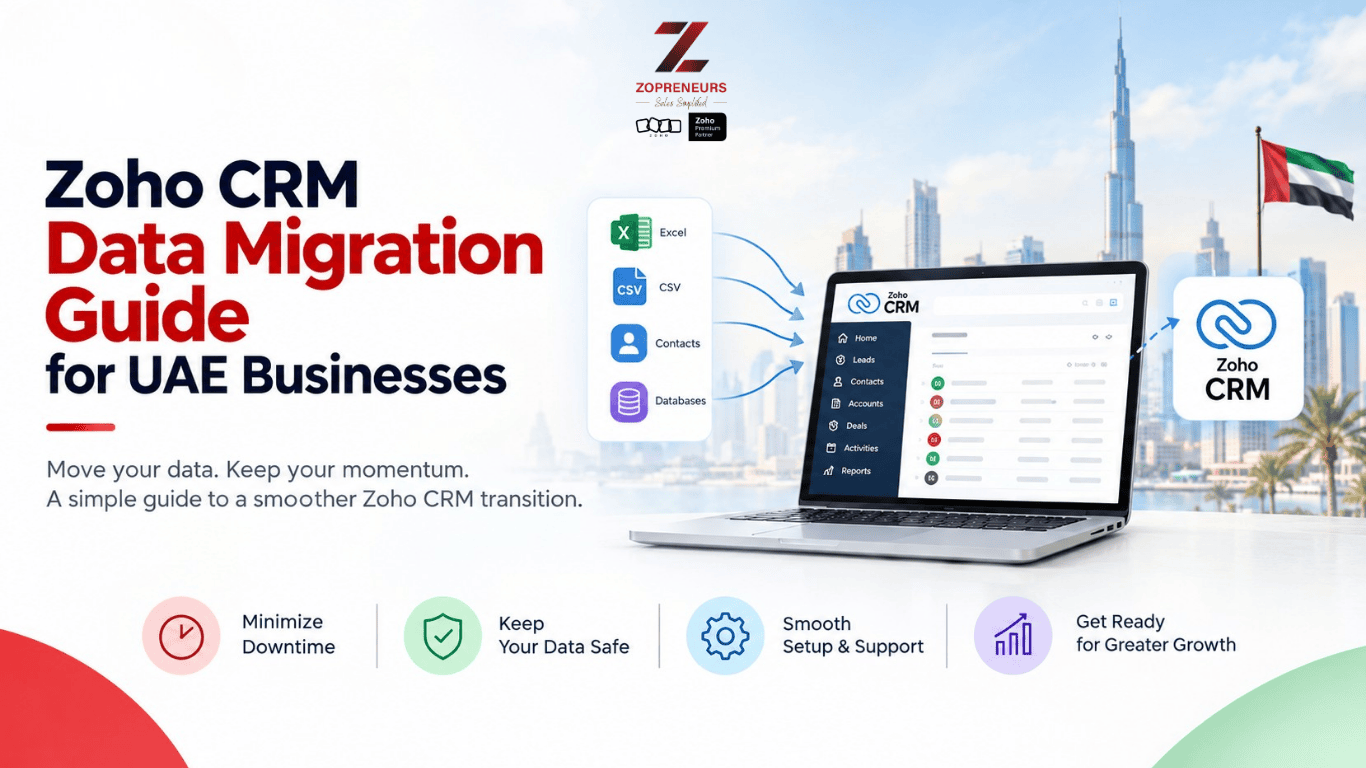
Moving to a new CRM system is an important step for any growing business. For many companies in the UAE, it happens when spreadsheets become difficult to manage, sales teams struggle to keep track of leads, or the existing CRM no longer supports the way the business operates.
Zoho CRM offers businesses a way to organise customer information, manage sales pipelines, automate routine tasks, and gain better visibility into their sales activities. But before teams can start enjoying these benefits, there is one important task to get right: data migration.
Moving customer records from spreadsheets, legacy CRM systems, or other business applications into Zoho CRM involves more than uploading a file. Duplicate contacts, missing information, inconsistent formats, and poorly structured records can create problems long after the migration is complete.
For UAE businesses managing multiple sales teams, branches, languages, or customer segments, these challenges can become even more complicated.
The good news is that with proper planning, data migration can be a smooth and manageable process. This guide explains how to prepare your data, move it into Zoho CRM, and avoid common mistakes along the way.
Why UAE Businesses Are Moving to Zoho CRM
Businesses across the UAE operate in competitive markets where timely follow-ups and strong customer relationships can make a significant difference.
Whether you run a real estate company in Dubai, a trading business in Sharjah, a consultancy in Abu Dhabi, or a service business operating across the Emirates, having accurate customer information is essential.
Many businesses begin with spreadsheets or a basic contact management tool. As enquiries increase, however, these systems can become difficult to maintain. Sales representatives may keep separate records, managers may struggle to understand the pipeline, and important customer conversations can get lost.
Zoho CRM helps bring customer information and sales activities into a central system.
Depending on the business requirements and configuration, teams can use it to manage leads, track deals, record customer interactions, automate follow-ups, and generate reports.
However, the value of the system depends partly on the quality of the data being moved into it. A well-planned migration gives businesses a cleaner starting point and helps employees adopt the new system with greater confidence.
Step 1: Review Your Existing Customer Data
Before importing anything into Zoho CRM, take time to understand what you already have.
Your information might be spread across Excel files, Google Sheets, another CRM, accounting software, email platforms, or individual employee records.
Start by identifying the data that needs to be migrated. This may include:
Leads and prospects
Contacts and customer details
Companies and account information
Deals and sales opportunities
Notes, tasks, and follow-up activities
Product and service information
Historical records that are still relevant to your business
Not every record needs to be transferred. Old test entries, outdated contacts, and unnecessary duplicate records can create clutter in the new system.
For example, a real estate company might have thousands of enquiries collected through property portals over several years. Before migration, the team should decide which records are still useful, which need updating, and which can be archived.
The objective is not simply to move everything. It is to bring the right information into a system where your team can actually use it.
Step 2: Clean and Standardise Your Data
Data cleaning is one of the most important parts of a successful CRM migration, and it is often the step businesses underestimate.
Imagine importing the same customer three times because their name appears differently in separate files. Or consider a sales representative trying to contact a lead whose phone number is missing a country code.
These small issues can affect reporting, customer communication, and follow-up activities.
Before migration, review your data for:
Duplicate records: Identify repeated contacts, companies, and leads. Decide which record should be retained and how useful information from duplicates will be consolidated.
Missing information: Check whether essential fields such as contact names, email addresses, phone numbers, and lead sources are populated where needed.
Inconsistent formats: Standardise phone numbers, dates, company names, and other frequently used fields.
Outdated information: Remove or update records that are no longer relevant, following your organisation's retention policies.
Incorrect field values: Check that information is stored consistently. For example, lead status values should follow a defined set of options rather than a mixture of terms such as "New," "Fresh," and "Just In."
For UAE businesses, phone number formatting deserves particular attention. If your team works with customers across the UAE and internationally, establish a consistent approach to country codes and phone number storage before importing the data.
A little preparation here can prevent hours of manual corrections later.
Step 3: Plan Your Zoho CRM Data Structure
Once the data is clean, the next step is to decide where each piece of information belongs in Zoho CRM.
This is where businesses should look beyond the existing spreadsheet layout and consider how their teams actually work.
For example, a company may currently store a contact's name, company, deal value, and follow-up date in one spreadsheet row. In Zoho CRM, these details may belong to different modules, depending on the business process and how the system is configured.
Before importing your records, review the standard modules and determine whether custom fields or additional configuration are needed.
Consider the following questions:
Which fields are essential for your sales process?
Do you need separate fields for emirate, industry, lead source, or customer segment?
How should leads be converted into contacts, accounts, and deals?
Do different teams require different fields or layouts?
Which users should have access to specific records?
For instance, a B2B trading company might need fields for industry, territory, product category, and expected order value. A real estate business may need property type, preferred location, budget, and viewing status.
The right structure depends on your business. Avoid adding too many fields simply because the information is available. Focus on what your team genuinely needs to manage customers and make decisions.
Step 4: Map Your Existing Fields to Zoho CRM
Field mapping connects information from your old system to the correct fields in Zoho CRM.
It sounds straightforward, but mistakes at this stage can place information in the wrong locations or leave important details behind.
Suppose your spreadsheet contains a column called "Customer Contact," while Zoho CRM uses separate fields for first name and last name. You will need to determine how the existing information should be split or mapped.
Similarly, an existing column named "Sales Stage" may need to match the appropriate deal stage or lead status, depending on what the data represents.
Create a field mapping document before starting the import. Include the original field name, the corresponding Zoho CRM field, any required formatting changes, and whether the field is mandatory.
Also review how relationships between records will be maintained. A contact may belong to a particular company, and a deal may be associated with a specific contact or account. These connections are important for accurate reporting and day-to-day work.
If you are migrating from another CRM, check which identifiers and relationship fields are available for preserving these links.
Step 5: Export and Import Your Data Carefully
After preparation and field mapping, you can begin the actual migration.
The exact process depends on where your data currently resides and the complexity of your setup. Spreadsheet imports may be relatively simple, while moving from another CRM can require additional steps to preserve relationships, activity history, and custom fields.
A typical migration process involves the following:
Export the relevant records from your existing system.
Save a secure backup of the original data.
Prepare the files in a supported format, such as CSV, where appropriate.
Review the Zoho CRM import options for the relevant module.
Map the source columns to the correct CRM fields.
Configure duplicate handling and other available import settings.
Run a small test import before migrating the complete dataset.
Review the imported records for errors and missing information.
Do not assume that every record or field will transfer automatically. Attachments, notes, historical activities, custom relationships, and certain system-specific fields may require separate handling or a different migration approach.
For larger migrations, complex integrations, or business-critical systems, it is worth involving an experienced Zoho implementation partner before importing the full dataset.
Step 6: Test the Migration Before Going Live
One of the most common mistakes businesses make is treating a successful import as proof that the migration is complete.
The records may have been imported without an error, but that does not necessarily mean the CRM is configured correctly.
Before going live, select a representative sample of records and verify the results.
Check whether:
Contact details appear in the correct fields.
Leads, contacts, accounts, and deals are associated correctly.
Lead statuses and deal stages match your intended process.
Dates, currency values, and phone numbers are displayed correctly.
Custom fields contain the expected information.
Users can access the records they need.
Reports and dashboards show sensible results.
Automations and integrations behave as expected.
Pay particular attention to currency fields if your business operates across multiple markets. UAE businesses may work with AED as well as other currencies, so ensure that currency settings and reporting requirements are configured appropriately.
You should also test workflows before enabling them across the full dataset. Otherwise, an import may trigger unexpected notifications, assignments, or automated actions.
Once the sample records have been checked and the issues resolved, you can proceed with the wider migration.
Step 7: Protect Customer Data and Review Access Permissions
Data migration is not just a technical exercise. It is also an opportunity to review how customer information is stored, accessed, and managed.
UAE businesses should consider their applicable data protection obligations, including the UAE Personal Data Protection Law where it applies, as well as any relevant sector-specific or free-zone requirements.
Before migration, establish who is authorised to access the source data and the new CRM. Use appropriate access controls, secure file transfers, and approved storage locations. Avoid sharing customer information through unsecured channels simply to make the migration easier.
After the import, review Zoho CRM user roles, profiles, sharing settings, and permissions. Employees should have access to the information required for their roles, rather than automatically receiving access to every record.
Also consider data retention requirements and how your business will manage outdated or unnecessary information in the future.
A secure migration process helps protect customer trust while creating a more organised environment for your team.
Common Zoho CRM Data Migration Mistakes to Avoid
Even a well-intentioned migration can create problems if certain details are overlooked.
Migrating without a backup: Always preserve a secure copy of your original data so you can investigate discrepancies and recover information if necessary.
Importing everything without cleaning it: Poor-quality records can undermine the benefits of moving to a new CRM.
Ignoring record relationships: Customer, company, and deal information should remain connected where required.
Overlooking custom fields: Important business information may be lost or misplaced if the target CRM structure is not prepared in advance.
Skipping the test import: Testing with a smaller dataset helps identify mapping and formatting issues before they affect thousands of records.
Failing to involve end users: Sales and customer service teams understand how customer information is used in daily operations. Their input can help ensure the new CRM supports real business needs.
Assuming migration is a one-time task: Once the system is live, establish clear rules for data entry, duplicate prevention, and regular data quality reviews.
A successful migration is not only about transferring information. It is about building a reliable foundation for the way your business manages customer relationships.
How Zopreneurs Can Help With Your Zoho CRM Migration
For businesses planning a move to Zoho CRM, having a clear migration strategy can save time, reduce errors, and make the transition easier for employees.
At Zopreneurs, we help businesses build structured sales processes using Zoho CRM, automation, and practical sales enablement strategies.
Our approach starts with understanding how your business currently manages leads, contacts, deals, and customer interactions. From there, the focus is on preparing the data, structuring the CRM around your requirements, and helping your team make better use of the system.
Whether you are moving from spreadsheets, migrating from another CRM, or restructuring an existing Zoho CRM setup, careful planning can help you avoid unnecessary complexity and get more value from your investment.
Final Thoughts
Zoho CRM data migration is an opportunity to do more than move customer records from one system to another. It gives your business a chance to remove outdated information, improve data quality, rethink sales processes, and establish a more reliable way to manage customer relationships.
For UAE businesses looking to grow, these improvements can make everyday sales activities easier to manage and give decision-makers better visibility into their pipeline.
The key is to plan before importing, test before going live, and maintain data quality once the new system is in place.
Planning to Move Your Business Data to Zoho CRM?
Let Zopreneurs help you make the transition smoother. Our team can help you assess your existing data, plan your CRM structure, and identify the right migration approach for your business needs.
Book your free consultation with Zopreneurs today to discuss your Zoho CRM migration and discover how a well-structured CRM can support your sales process as your business grows in the UAE.