Implementing a CRM is more than simply creating an account and importing your customer data. A successful implementation starts with understanding how your business works, configuring the CRM around those processes, moving data carefully, automating repetitive tasks, testing everything, and ensuring your team knows how to use the system.
For businesses adopting Zoho CRM, following a structured implementation checklist can help reduce errors, improve user adoption, and create a CRM that actually supports day-to-day sales operations.
In this guide, we’ll walk through a practical Zoho CRM implementation checklist, from initial planning to go-live and ongoing optimization.
What Is Zoho CRM Implementation?
Zoho CRM implementation is the process of configuring Zoho CRM to match your company's sales processes, customer journey, data structure, automation requirements, reporting needs, and team workflows.
Zoho provides standard CRM modules and customization options, but businesses can adapt modules, fields, pipelines, automation, permissions, reports, and other components to their specific requirements.
A well-planned implementation typically covers:
- Business process mapping
- CRM configuration and customization
- User and access management
- Data migration
- Automation
- Integrations
- Testing
- Team training
- Go-live
- Continuous optimization
Zoho CRM Implementation Checklist
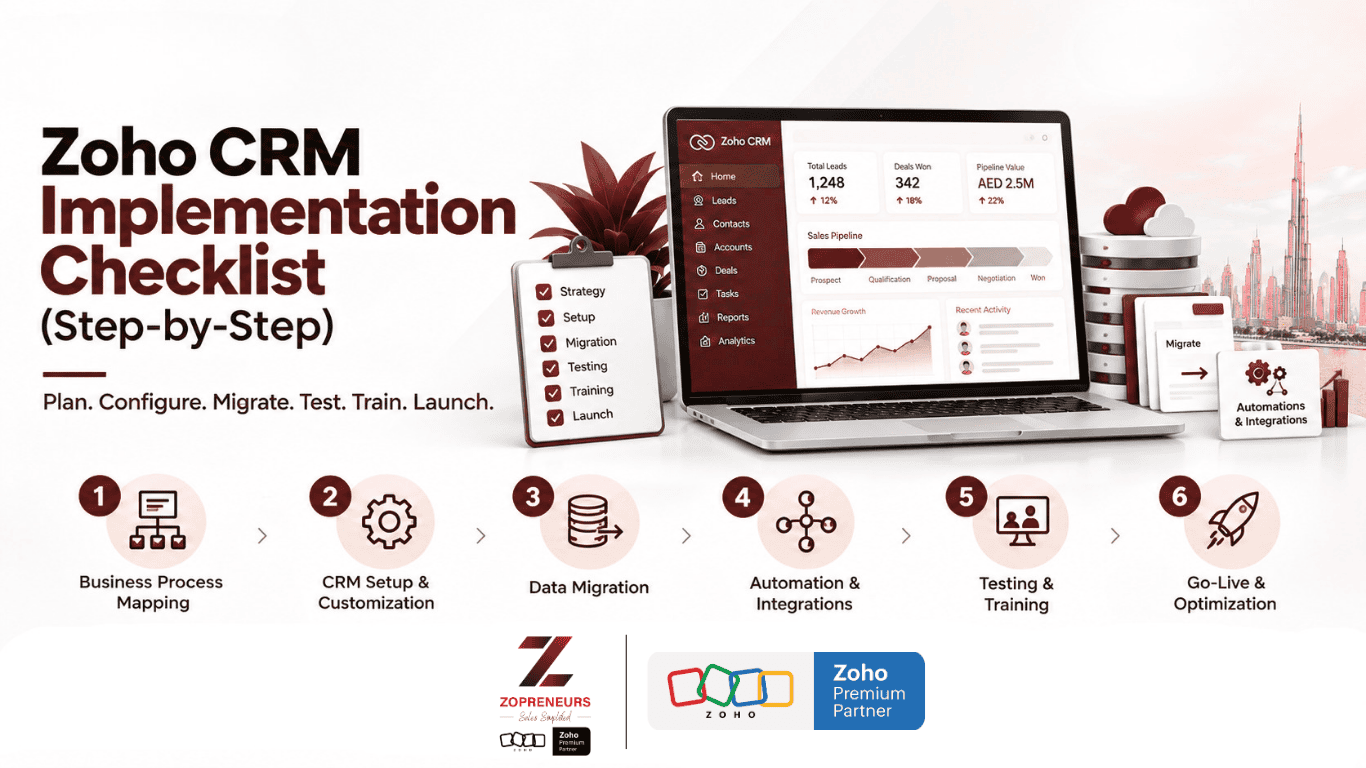
Use the following six-step checklist to structure your implementation:
1. Business Process Mapping
2. CRM Setup & Customization
3. Data Migration
4. Automation & Integrations
5. Testing & Training
6. Go-Live & Optimization
Let's look at each step in detail.
1. Business Process Mapping
Before configuring anything inside Zoho CRM, understand how your business currently works.
A common mistake is to start creating fields and modules immediately without first documenting the actual sales process.
Start by identifying:
- How leads enter your business
- Where leads come from
- How leads are qualified
- Who follows up with them
- What happens after qualification
- How opportunities move through the sales pipeline
- When a deal is considered won or lost
- What happens after closing
- Which activities need to be tracked
- What information management needs to see
Map Your Customer Journey
For example:
Lead Generated → Lead Qualified → Contacted → Opportunity Created → Proposal → Negotiation → Won/Lost
Your CRM should reflect the way your team actually works rather than forcing employees into an unnecessarily complicated process.
Define Your CRM Goals
Ask:
- What problem are we trying to solve?
- What information do salespeople need?
- What processes are currently manual?
- Where are leads being lost?
- What reports does management need?
- Which activities should be automated?
Checklist:
☐ Document current sales process
☐ Identify pain points
☐ Define CRM objectives
☐ Map customer journey
☐ Define pipeline stages
☐ Identify required reports and dashboards
2. CRM Setup & Customization
Once your processes are mapped, configure Zoho CRM around them.
Zoho CRM provides standard modules such as Leads, Contacts, Accounts and Deals, while businesses can also customize fields, layouts, modules, pipelines, permissions and other elements according to their requirements.
Configure Your Organization
Start with basic organization settings such as:
- Company details
- Time zone
- Currency
- Business hours
- Admin users
- Email configuration
These settings can affect notifications, scheduling, automated actions and other CRM activities.
Configure Modules and Fields
Review the standard modules and determine what needs to be customized.
For example:
Leads
- Lead Source
- Industry
- Lead Status
- Lead Owner
Deals
- Deal Stage
- Expected Closing Date
- Deal Amount
- Probability
Contacts
- Contact Type
- Customer Segment
- Communication Preferences
Avoid adding fields simply because they are available. Every field should have a purpose.
Set Up Roles and Permissions
Determine:
- Who can view records?
- Who can edit records?
- Who can delete records?
- Which teams should have access to specific data?
- Which users require administrator access?
This helps maintain appropriate data visibility as your CRM grows.
Checklist:
☐ Configure organization settings
☐ Add users
☐ Create roles and profiles
☐ Customize modules
☐ Create required fields
☐ Configure layouts
☐ Set pipeline stages
☐ Configure data access and permissions
3. Data Migration
If you're moving from spreadsheets or another CRM, data migration needs careful planning.
Simply uploading a spreadsheet into Zoho CRM isn't enough. Your data needs to be cleaned, structured, mapped and validated before the final migration.
Zoho CRM's migration tools can map imported files to CRM modules and fields, while migration processes can also handle relationships between records and supported attachments.
Clean Your Existing Data
Before migration, review your database for:
- Duplicate records
- Missing information
- Incorrect email addresses
- Outdated contacts
- Inconsistent formats
- Empty fields
- Incorrect ownership
- Duplicate companies
Test Before Full Migration
Don't immediately migrate your entire database.
Import a smaller sample first, check the results, fix mapping issues and then proceed with the larger migration. Zoho specifically recommends testing smaller subsets when dealing with larger imports.
Checklist:
☐ Back up existing data
☐ Clean the database
☐ Remove duplicates
☐ Standardize data formats
☐ Map fields
☐ Test sample migration
☐ Verify relationships
☐ Validate migrated records
☐ Complete final migration
4. Automation & Integrations
Once your CRM structure and data are ready, identify repetitive processes that can be automated.
Automation can reduce manual work and help sales teams maintain consistent follow-ups.
Identify Repetitive Tasks
For example:
New Lead Created → Assign Lead → Send Notification → Create Follow-Up Task
Other potential automation areas include:
- Lead assignment
- Follow-up reminders
- Email notifications
- Task creation
- Deal-stage actions
- Approval processes
- Lead nurturing
- Internal notifications
Zoho CRM supports automation capabilities that can be configured around business processes and workflows.
Connect Your Business Tools
Depending on your requirements, you may also need integrations with:
- Telephony
- Marketing platforms
- Accounting systems
- Customer support tools
- WhatsApp or messaging platforms
- Websites
- Other Zoho applications
- Third-party applications
The objective isn't to integrate everything. Integrate the systems that need to exchange information with your CRM.
Checklist:
☐ Identify repetitive tasks
☐ Define automation triggers
☐ Configure workflow rules
☐ Set up notifications
☐ Configure approvals where required
☐ Connect relevant applications
☐ Test data flow between systems
5. Testing & Training
Before launching your CRM to the entire team, test the system from an actual user's perspective.
A CRM can be technically configured correctly and still fail if users don't understand how to use it.
Test the Complete Customer Journey
Run realistic scenarios such as:
Lead Created → Lead Assigned → Follow-Up → Qualified → Deal Created → Proposal → Won
Check whether:
- Records move correctly
- Automations trigger as expected
- Notifications are delivered
- Data is visible to the right users
- Reports display correct information
- Integrations work properly
- Required fields behave correctly
Train Your Team
Training should focus on the actual workflows your employees use.
Instead of explaining every CRM feature, show employees:
- How to create and update records
- How to manage leads
- How to update deal stages
- How to schedule follow-ups
- How to record activities
- How to find customer information
- How to use reports and dashboards
Checklist:
☐ Test modules
☐ Test workflows
☐ Test integrations
☐ Check permissions
☐ Validate reports
☐ Test real-life scenarios
☐ Train administrators
☐ Train end users
☐ Document important processes
6. Go-Live & Optimization
Once testing is complete and users are trained, it's time to go live.
But implementation doesn't end when your CRM goes live.
The first few weeks are important for identifying issues that weren't visible during testing.
Monitor Your CRM After Launch
Track:
- User adoption
- Data quality
- Follow-up activity
- Pipeline updates
- Automation performance
- Lead conversion
- Sales activity
- Dashboard accuracy
Ask your team:
What is working?
What is slowing you down?
What information is missing?
Which process still requires manual work?
Use this feedback to improve the system.
Zoho's own administrator guidance emphasizes maintaining accurate data, customizing CRM processes, designing automation, and using reports and dashboards to monitor business metrics.
Checklist:
☐ Complete final system review
☐ Confirm users and permissions
☐ Launch CRM
☐ Monitor adoption
☐ Review data quality
☐ Track automation
☐ Collect user feedback
☐ Improve workflows
☐ Review dashboards regularly
Common Zoho CRM Implementation Mistakes
Even with a checklist, businesses can run into problems during implementation.
1. Configuring Before Understanding the Process
Building the CRM before documenting the sales process can result in unnecessary fields, confusing pipelines and inefficient workflows.
2. Migrating Unclean Data
Moving duplicate or outdated information into a new CRM simply transfers the problem to another system.
3. Overcomplicating the CRM
More fields, workflows and customizations don't necessarily mean a better CRM.
Build around what your team actually needs.
4. Ignoring User Adoption
If employees don't understand why and how they should use the CRM, adoption can suffer regardless of how well the system is configured.
5. Skipping Testing
A workflow that looks correct during configuration may behave differently when used with real business scenarios.
6. Treating Go-Live as the Finish Line
Your CRM should evolve as your business, team and sales process evolve.
Zoho CRM Implementation Checklist: Quick Summary
Here's the complete process at a glance:
| Stage | Key Activities |
|---|---|
| 1. Business Process Mapping | Map sales process, customer journey and CRM goals |
| 2. CRM Setup & Customization | Configure modules, fields, pipelines, users and permissions |
| 3. Data Migration | Clean, map, test and migrate data |
| 4. Automation & Integrations | Automate repetitive tasks and connect required tools |
| 5. Testing & Training | Test workflows, validate data and train users |
| 6. Go-Live & Optimization | Launch, monitor adoption and continuously improve |
Final Thoughts
A successful Zoho CRM implementation isn't about simply switching on features. It's about creating a CRM that matches the way your business operates.
The right implementation process should connect people, processes, data and technology into one organized system.
By following a structured approach — Plan → Configure → Migrate → Automate → Test → Train → Launch → Optimize — businesses can create a stronger foundation for managing leads, customers and sales activities.
For businesses that don't have the internal time or expertise to handle the entire process, working with an experienced Zoho implementation partner can help with process mapping, CRM customization, data migration, automation, integrations, training and ongoing optimization.
Need help implementing Zoho CRM for your business?
Zopreneurs helps businesses design and implement Zoho CRM around their actual business processes — from initial planning and setup to automation, migration, training and optimization.
As a Zoho Premium Partner, Zopreneurs can help you turn your CRM from a basic database into a system built around the way your team works.
Ready to build a CRM that works for your business? Get in touch with Zopreneurs.